TABLE OF CONTENTS
- Purpose
- Prerequisites
- How to Use the WCAG Title II Review Tool for URLs:
- Auditing a PDF Document:
- Sending the Report via Outlook:
- Screen Reader Compatibility Audit
Purpose
The standardized process for using the WCAG Accessibility Auditor to identify, report, and remediate Critical and Serious accessibility issues on UAB websites and PDF documents in compliance with:
- WCAG 2.1 Level AA
- Americans with Disabilities Act (ADA) Title II
- U.S. Department of Justice digital accessibility rule (April 2024)
Prerequisites
- Access to claude.ai with the WCAG Accessibility Auditor artifact open
- Signed into outlook.office.com in the same browser
- The URL of the page to be audited or the PDF file saved locally
- Google Chrome (recommended)
How to Use the WCAG Title II Review Tool for URLs:
- Navigate to claude.ai and open the WCAG Accessibility Auditor conversation
- The auditor interface will load in the right-hand panel with three step cards visible.
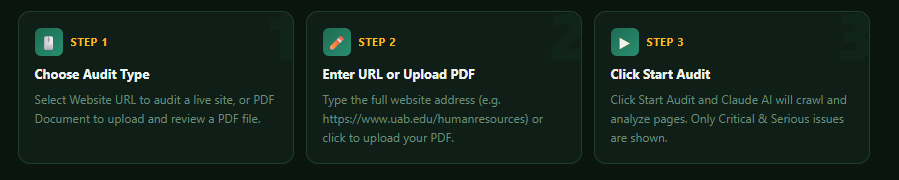
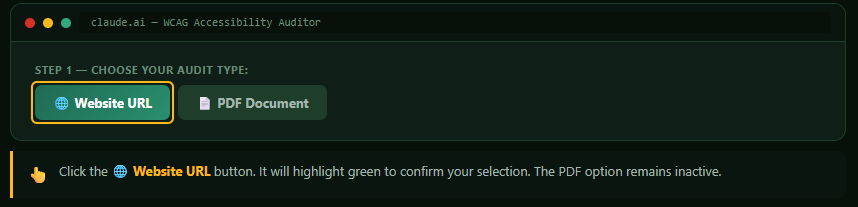
- Under "Step 1 - Choose your audit type," Click Website URL Button.
- Step 2: Enter the URL:
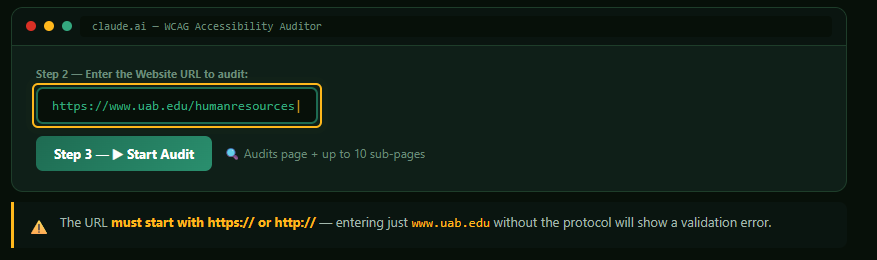
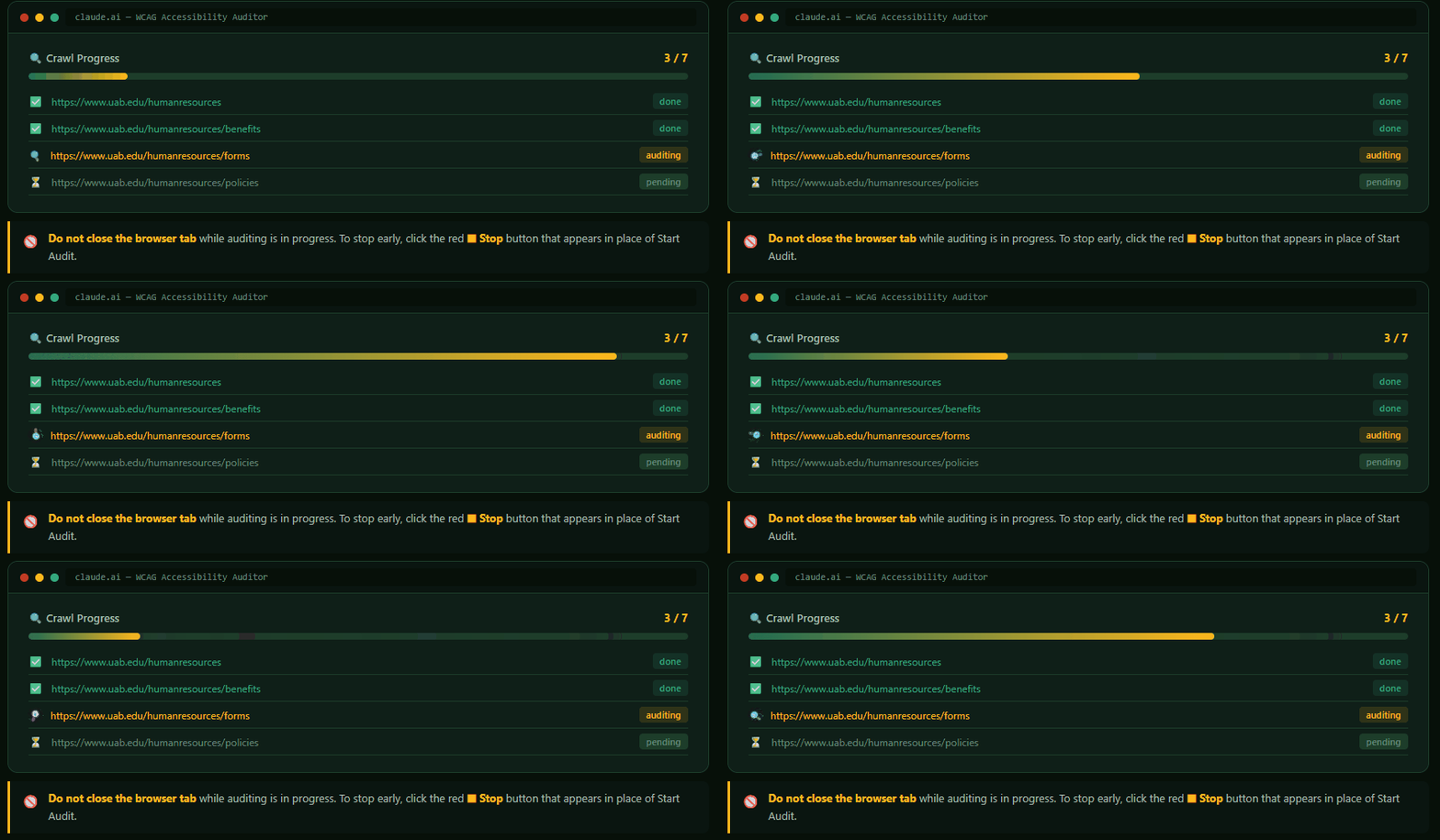
- Step 3: Start Audit: Click "Step 3 — ▶ Start Audit"
- Reading Results:
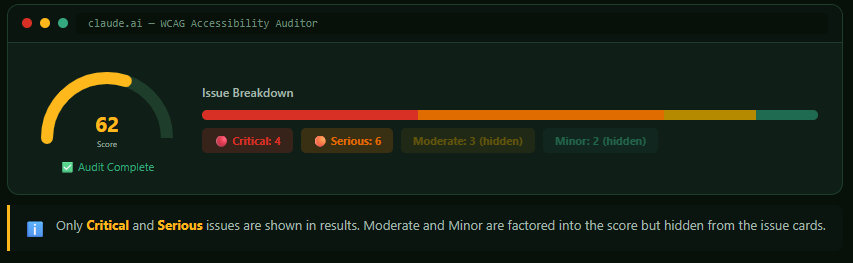
 An Overall Score gauge(0–100) appears when complete:
- Critical issues are shown in red; Serious in orange
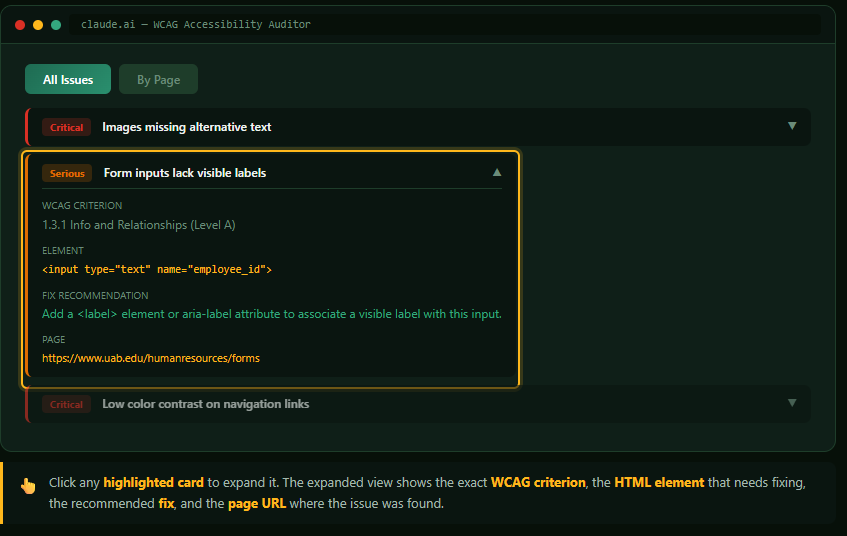
- Click any issue card to expand details:
- WCAG Criterion — the specific standard violated
- Element — the HTML element or location involved
- Fix Recommendation — the corrective action required
- Page — the specific page where the issue was found
- Toggle between All Issues and By Page views using the tab buttons
- Under "Step 1 - Choose your audit type," Click Website URL Button.
Auditing a PDF Document:
- Navigate to claude.ai and open the WCAG Accessibility Auditor conversation
- The auditor interface will load in the right-hand panel with three step cards visible.
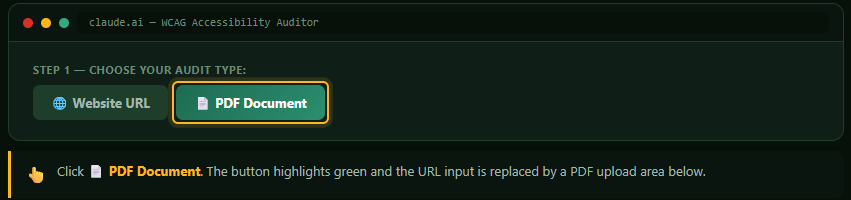
- Under "Step 1 - Choose your audit type," Click PDF Document Button.
- Step 2: Upload the PDF:
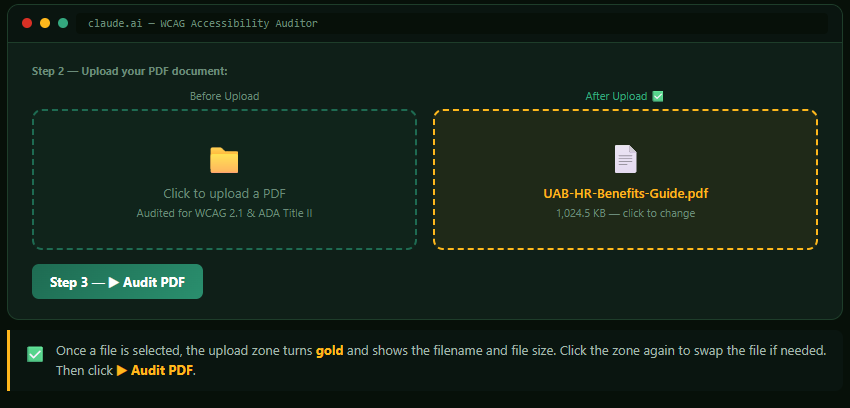
- Click "Step 3 — ▶ Audit PDF" Automatically runs a Screen Reader Compatibility Audit.
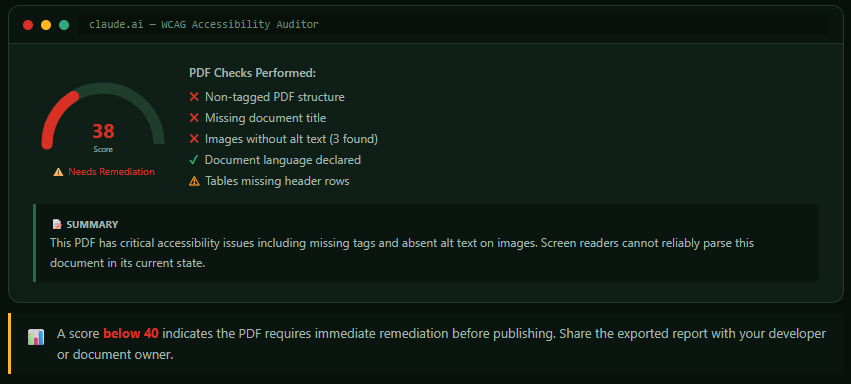
- Under "Step 1 - Choose your audit type," Click PDF Document Button.
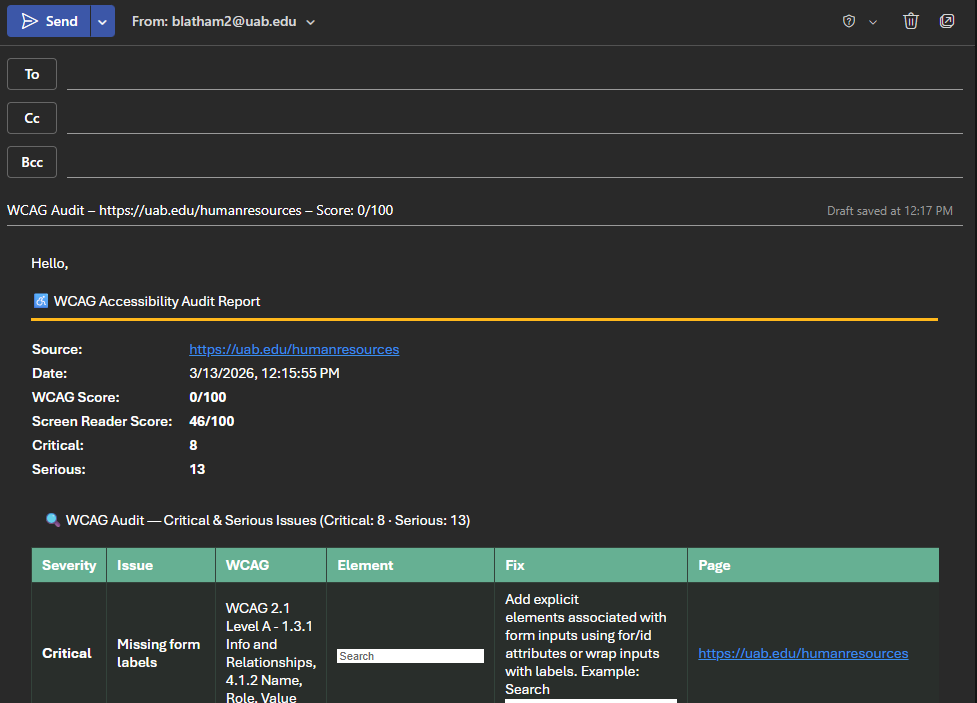
Sending the Report via Outlook:
You must be signed into Online Outlook Access Link for this to work correctly.
- Click on "Send via Outlook" Button.

- Copy the Report
- Click Select ALL
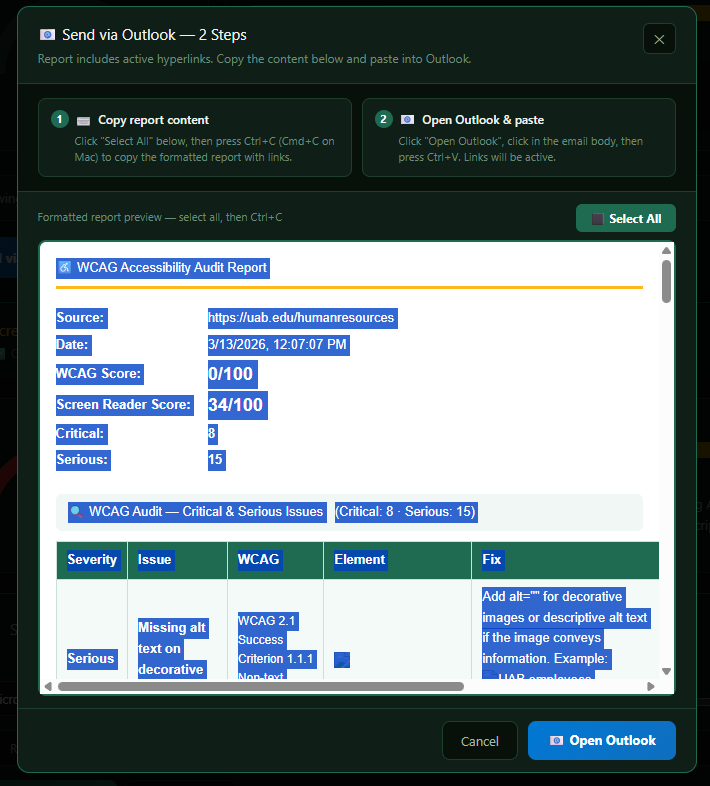
- Press CTRL+C (Windows) or CMD+C (Mac)
- Click "Open Outlook" (Outlook Web opens in a new tab with the subject pre-filled. You MUST already be logged in.)
- A Pop-Up window will appear, click "Open Link".
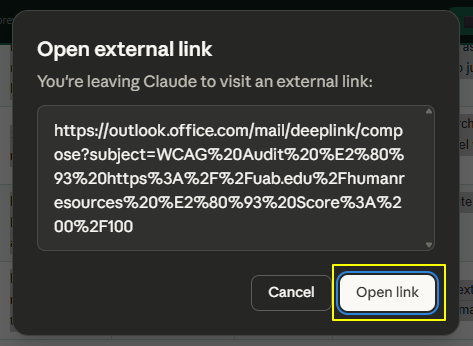
- Your default browser will Open to your Outlook Page
- Click inside the body of the email
- Press CTRL+V to paste the formatted report
- Add Recipients in the TO: field
- Click "Send"
Screen Reader Compatibility Audit
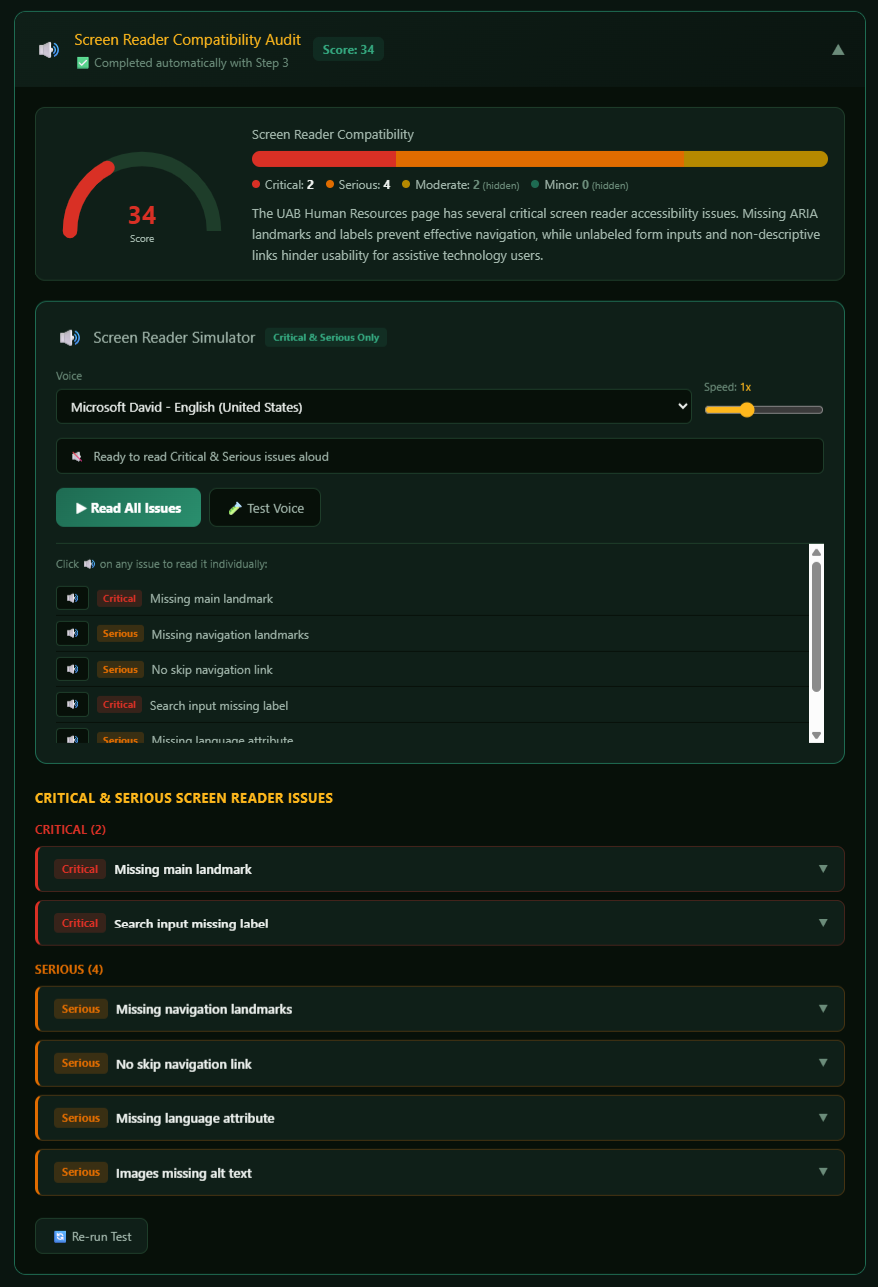
The Screen Reader Audit runs automatically after Step 3 completes for both URL and PDF audits. No additional action is required.
Results include:
- A dedicated Screen Reader Score (0–100)
- Issues specific to: ARIA landmarks, labels, focus order, keyboard navigation, skip links, live regions, and modal accessibility
- A Speech Player to simulate how a screen reader would announce issues aloud
To re-run the screen reader audit manually, click ? Re-run Test at the bottom of the Screen Reader section.